Windsurf
IDE
Configure Windsurf to use Webyaam MCP for website generation.
Endpoint
https://mcp.webyaam.com/mcp
Config path
Windsurf MCP settings
Setup guide
Connect Windsurf to Webyaam
1
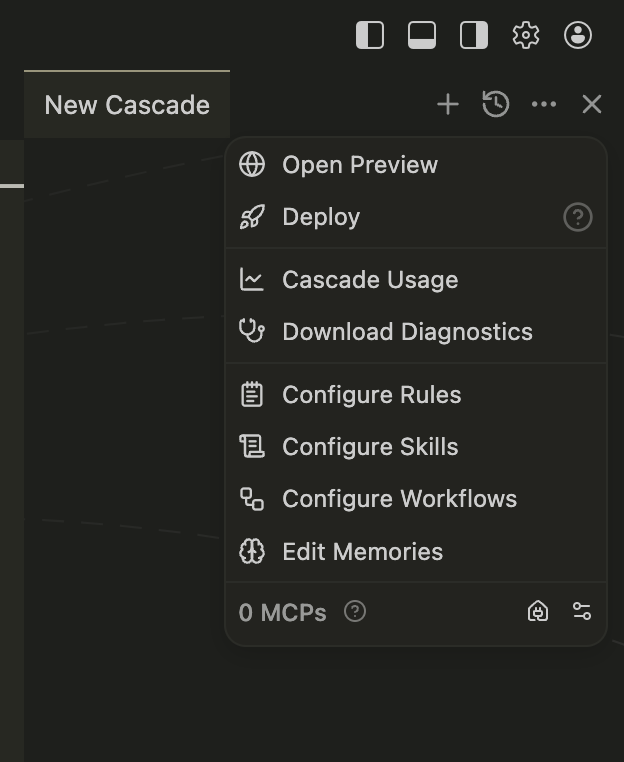
Open Windsurf and start a New Cascade. Click the three-dot menu (···) in the top-right corner of the Cascade panel. At the bottom you'll see "0 MCPs". Click the settings icon next to it.
2
This opens the mcp_config.json file at ~/.codeium/windsurf/mcp_config.json. Paste the config below and replace YOUR_WEBYAAM_TOKEN with your real Webyaam API token. Windsurf uses serverUrl instead of url.
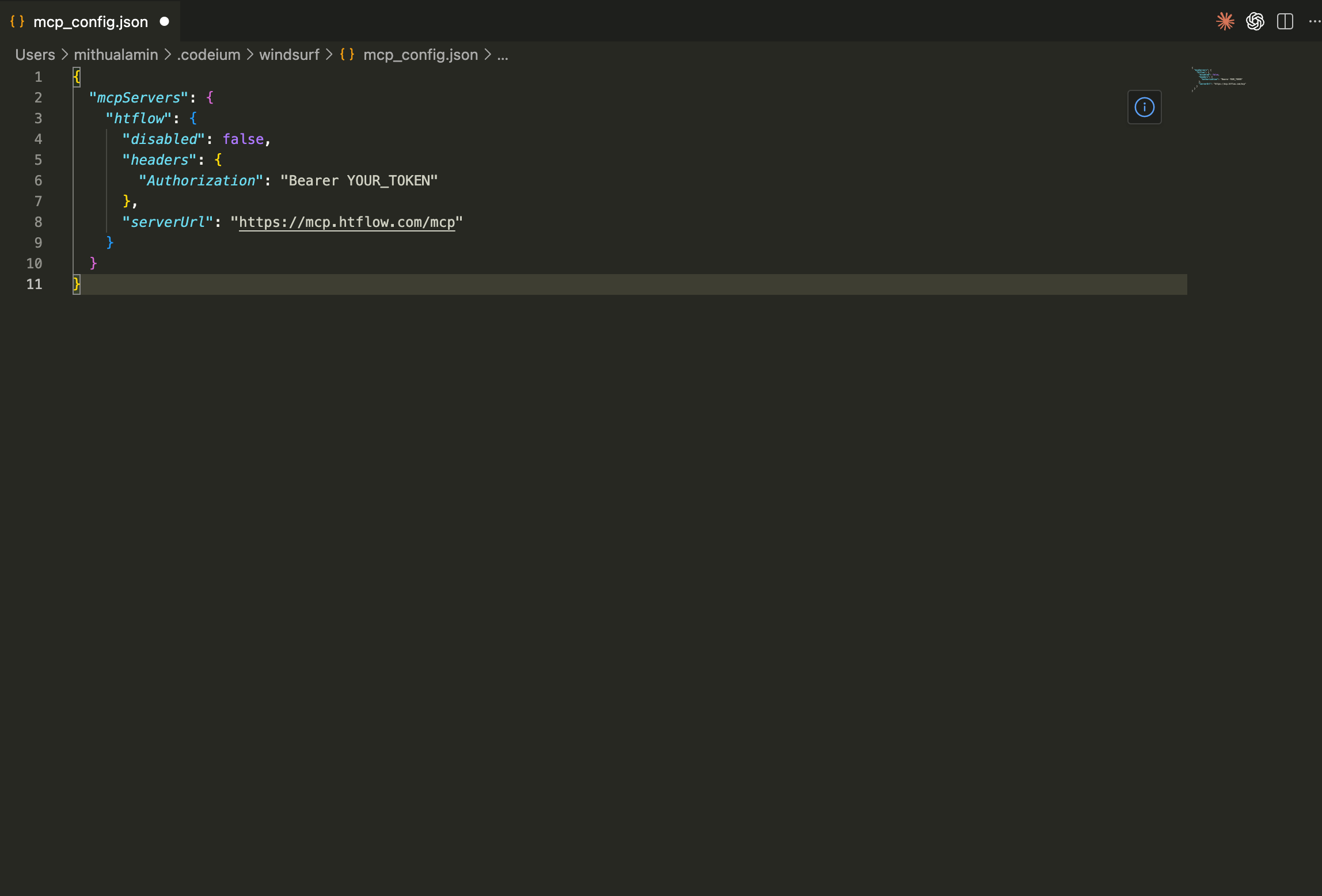
mcp_config.json
{
  "mcpServers": {
    "webyaam": {
      "disabled": false,
      "headers": {
        "Authorization": "Bearer YOUR_WEBYAAM_TOKEN"
      },
      "serverUrl": "https://mcp.webyaam.com/mcp"
    }
  }
}
3
Save the config and restart Windsurf. The MCP count should update to show "1 MCPs". You can now ask Cascade to generate a full website through Webyaam MCP.
Config snippet
mcp_config.json
{
  "mcpServers": {
    "webyaam": {
      "disabled": false,
      "headers": {
        "Authorization": "Bearer YOUR_WEBYAAM_TOKEN"
      },
      "serverUrl": "https://mcp.webyaam.com/mcp"
    }
  }
}