Webyaam runs a remote MCP server for your workspace. Any compatible client can connect to it, including Claude and ChatGPT.
1. Add the server
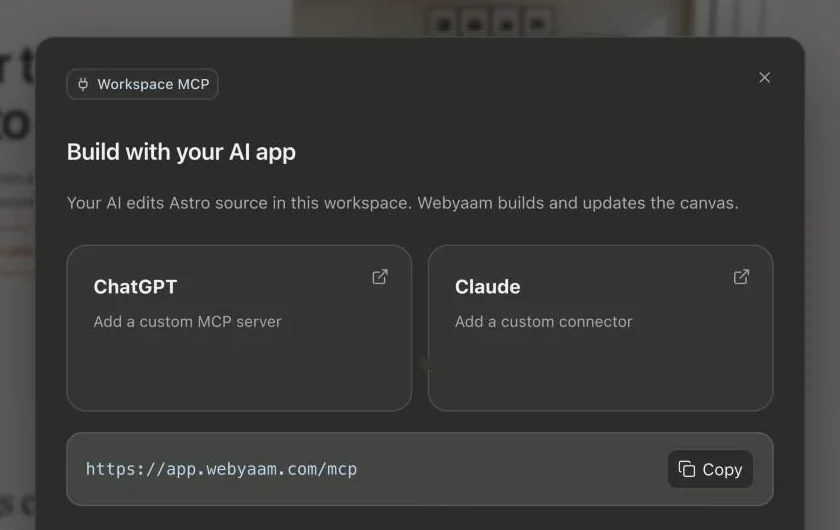
In your AI client, add a custom connector and paste:
https://app.webyaam.com/mcp
In the builder, the AI connect dialog opens the right screen in Claude or ChatGPT and copies the URL for you.
2. Authorize
Sign in to Webyaam and choose the workspace to connect. Access is limited to that workspace and follows your role.
3. Build together
Ask for a page, a section or a content change. More than 50 tools cover pages, layouts, styles, CMS, variables, SEO, forms, assets and builds. Your AI can audit pages and take screenshots at desktop and mobile widths to check its own work.
Every change lands on the canvas, where you can keep editing in the Design and Style tabs. Read the full MCP guide for details.