Live canvas
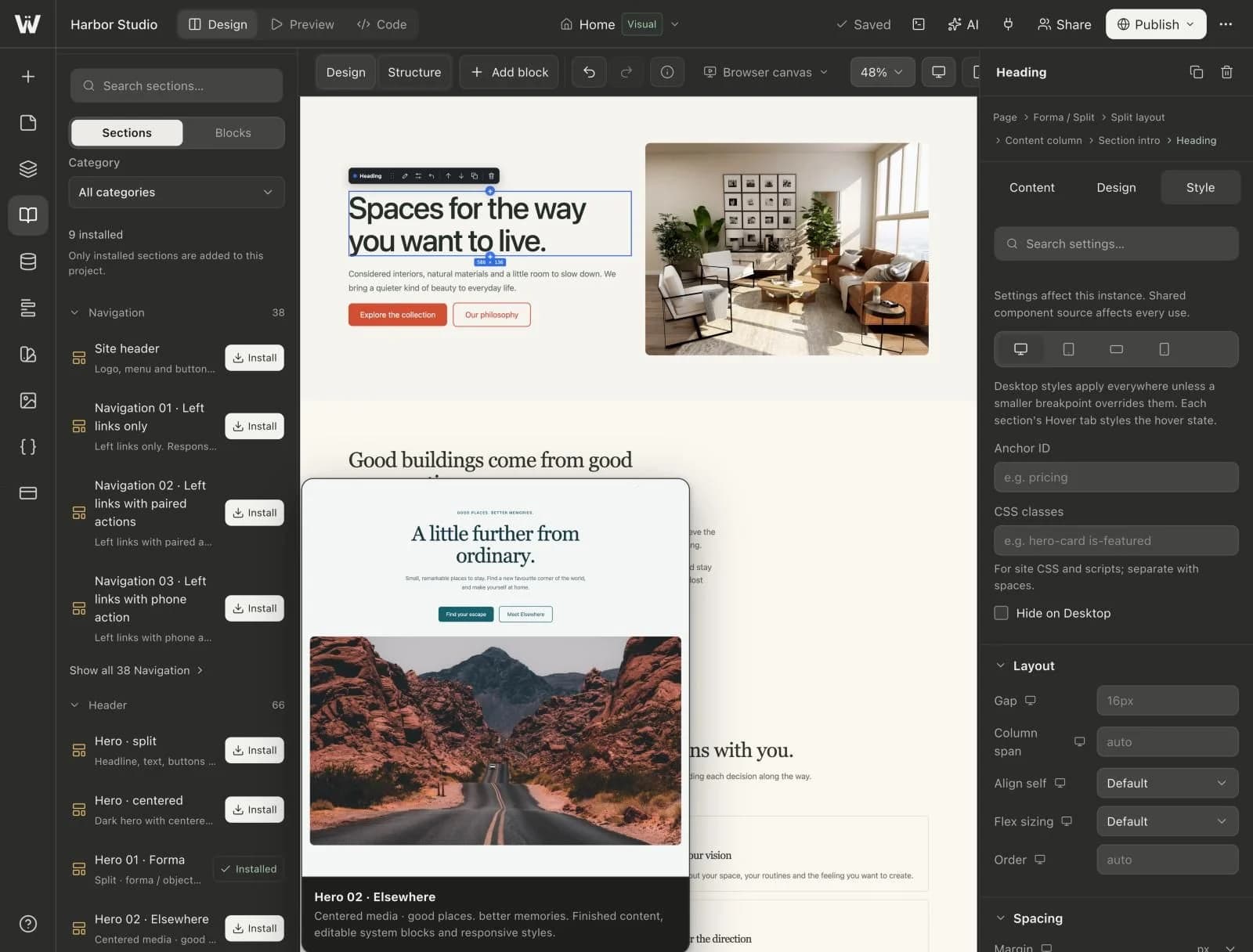
The canvas renders your real Astro project, so what you select is what ships.
Select a block on the canvas or in the Navigator. Edit its content and layout in the Design tab, and its typography, spacing, color and effects in the Style tab.
A real look at visual editor in the builder. Scroll to explore.
Click any block. It gets a selection outline and a quick toolbar right where you are working.
Every section, stack and element as a tree. Selection stays in sync with the canvas.
Three tabs for each block: what it says, how it is laid out, and how it looks.
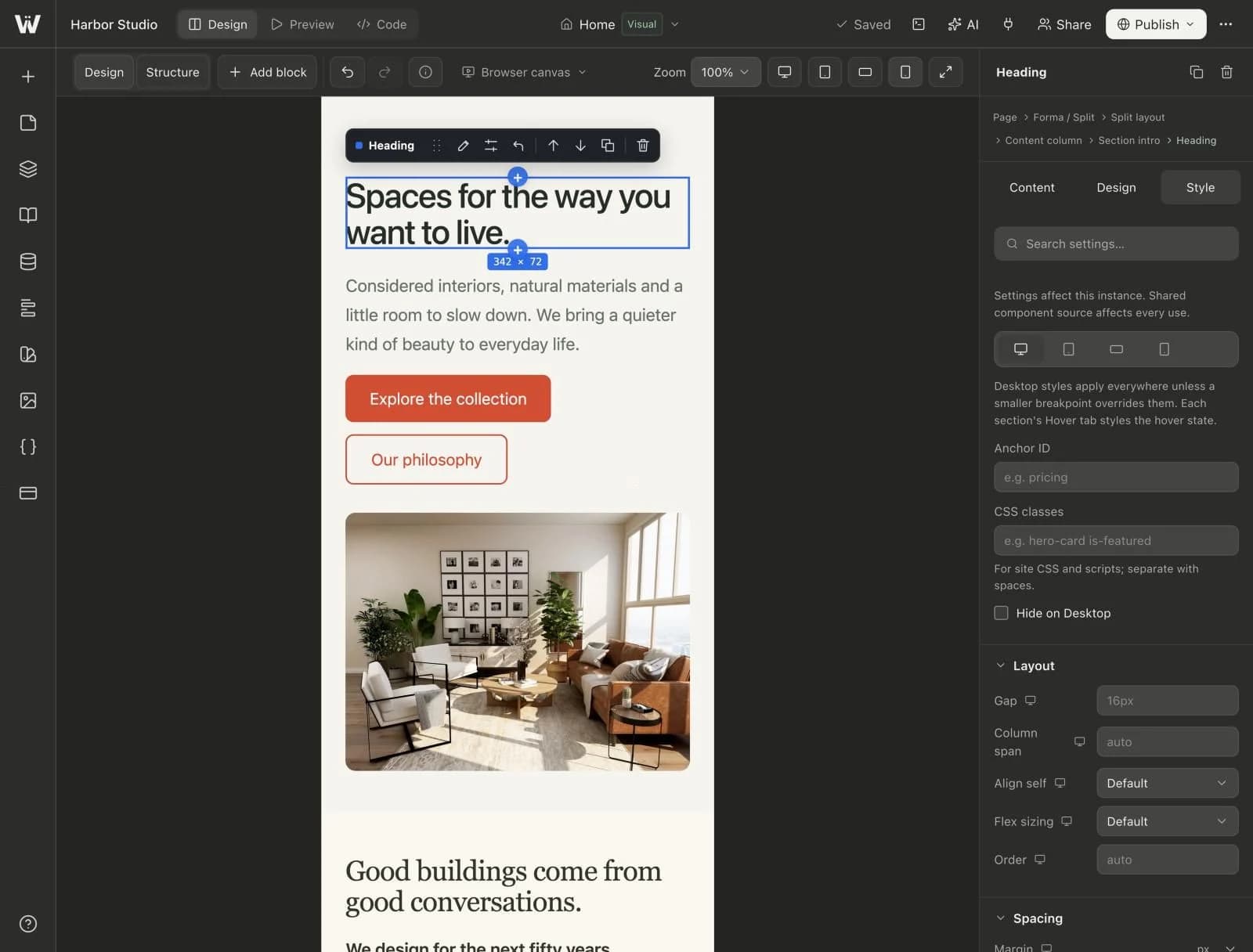
Switch between desktop, tablet, landscape and mobile before you change a value.
The canvas switched to the mobile breakpoint at 100% zoom, with the Style tab beside it.
Desktop, tablet, landscape and mobile are one click away in the canvas toolbar.
The canvas renders your page at the selected width, so you edit what visitors will see.
Desktop styles apply everywhere unless a smaller breakpoint overrides them.
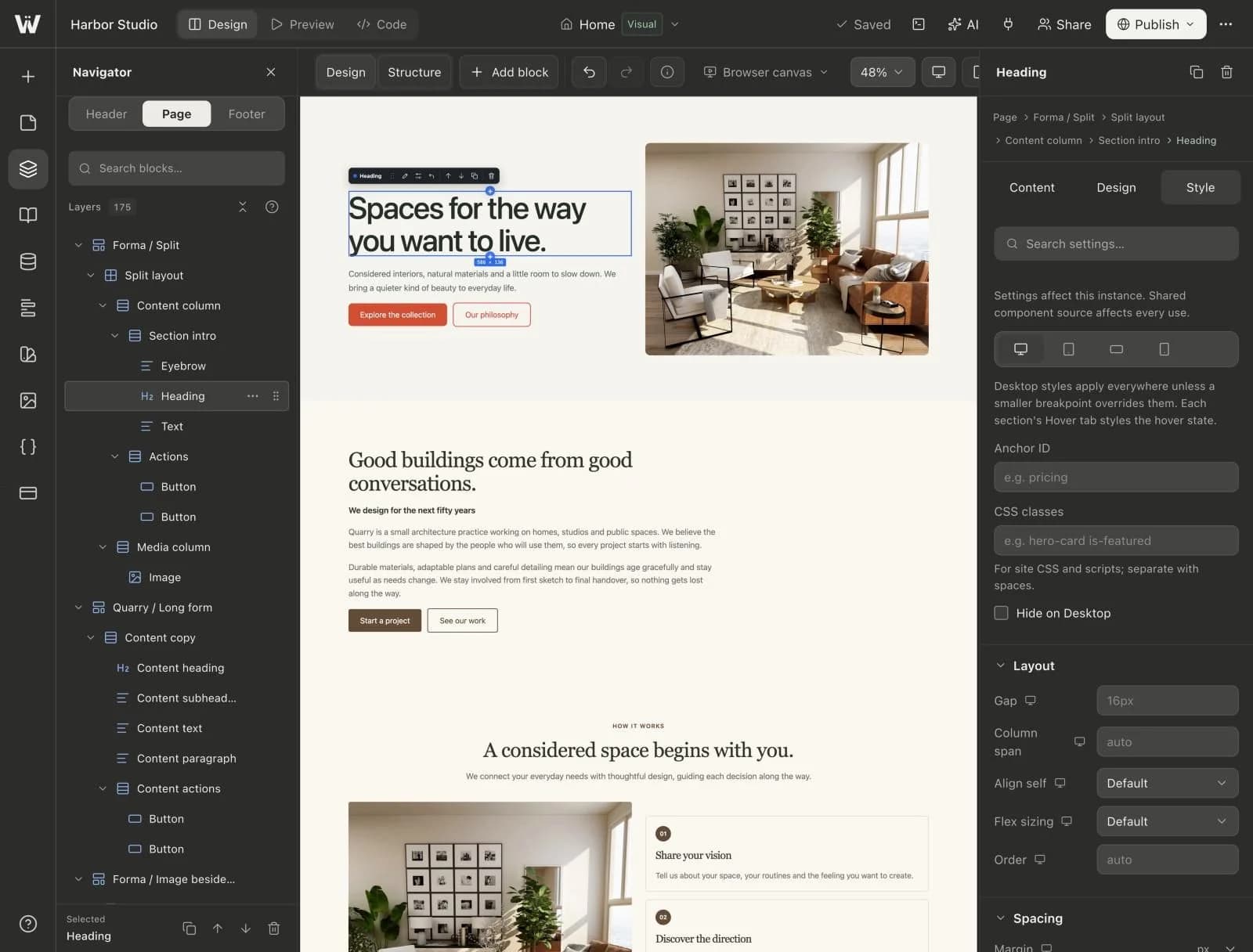
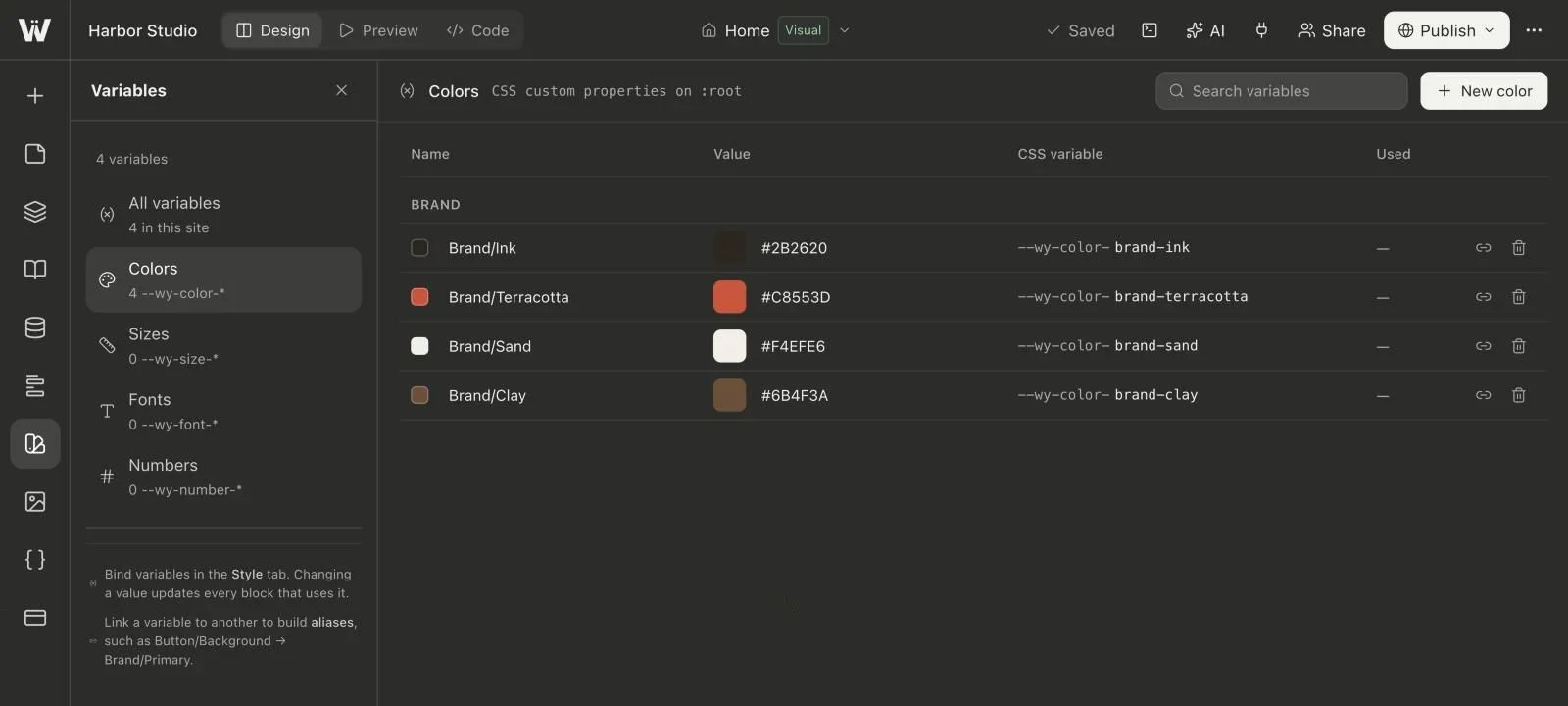
Real screenshots of the Webyaam builder with a demo site.
01 What you get
The canvas renders your real Astro project, so what you select is what ships.
Content and layout in one tab, the look in the other. No hunting through panels.
Selection stays in sync between the canvas and the Navigator tree.
Turn repeated pieces into components and edit every instance from one source.
02 How it works
Click any block on the canvas or pick it in the Navigator.
Edit content in Design, then refine the look in Style.
Changes are saved to your project's source as you work.
03 Keep exploring
Your next website starts here
Start free in the builder. Your first site gets a 7-day trial with Grow features, no credit card needed.