More than 900 sections
Finished heroes, features, pricing, FAQs, footers and more across 13 categories.
Insert finished section presets or single blocks from the built-in library, then change every piece of content and style once it is on your page.
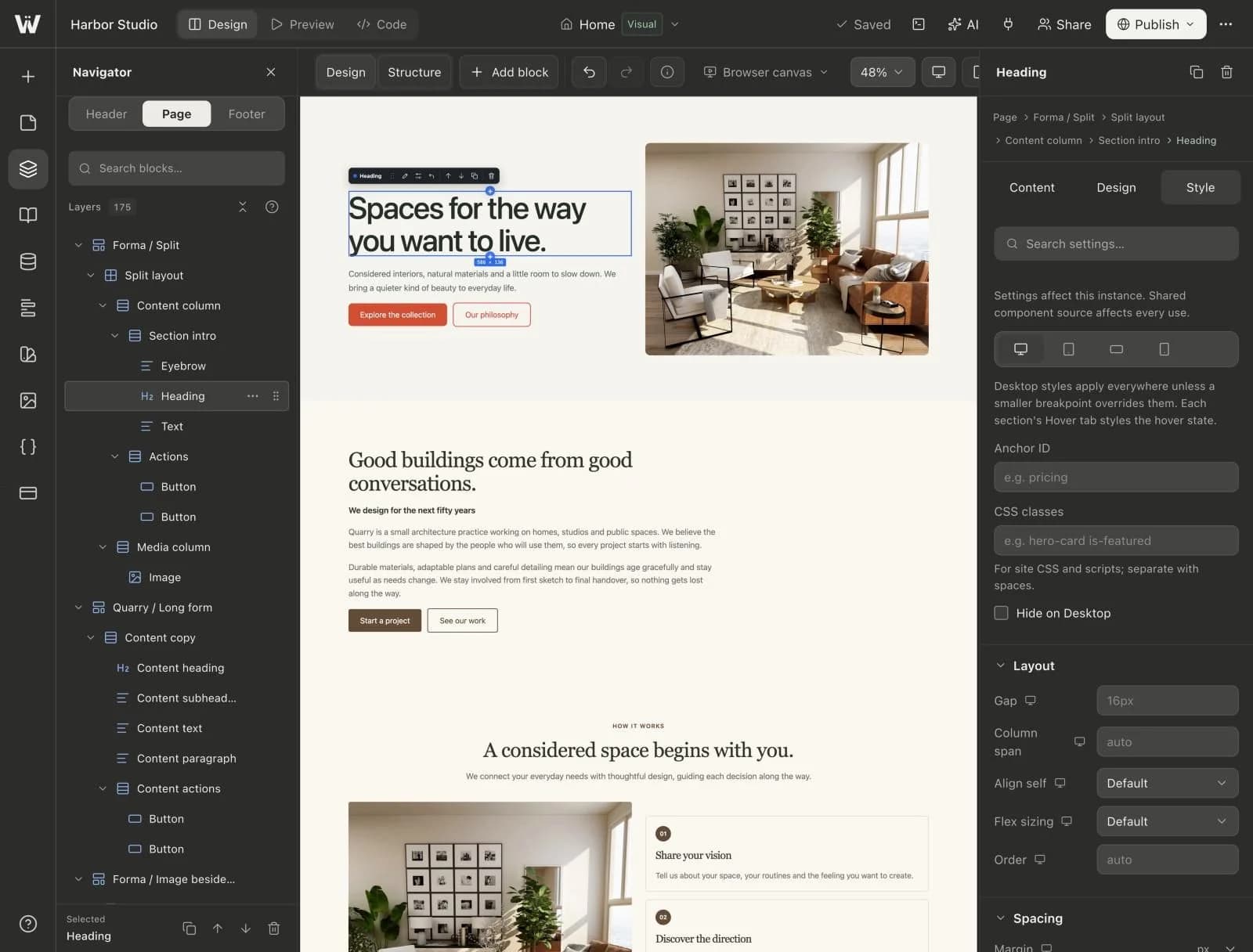
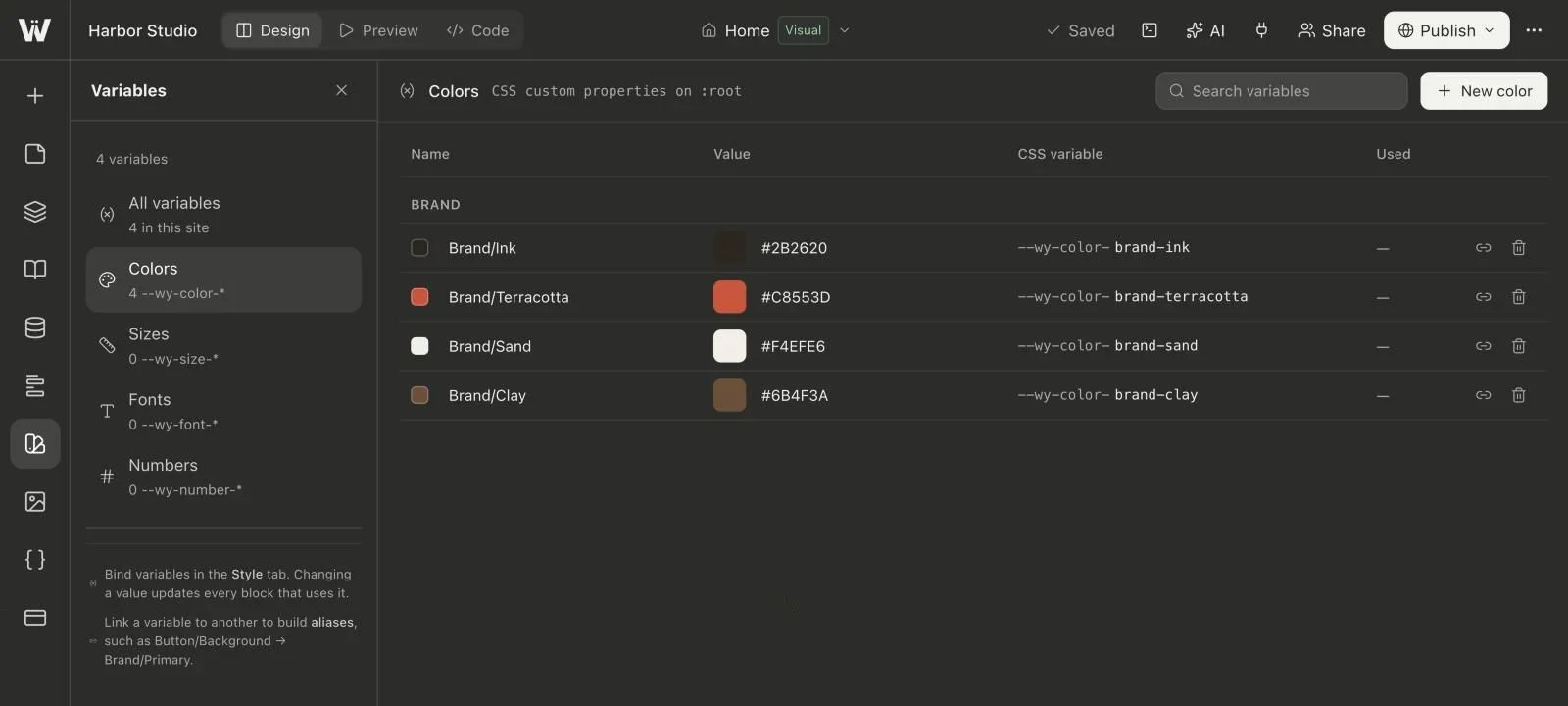
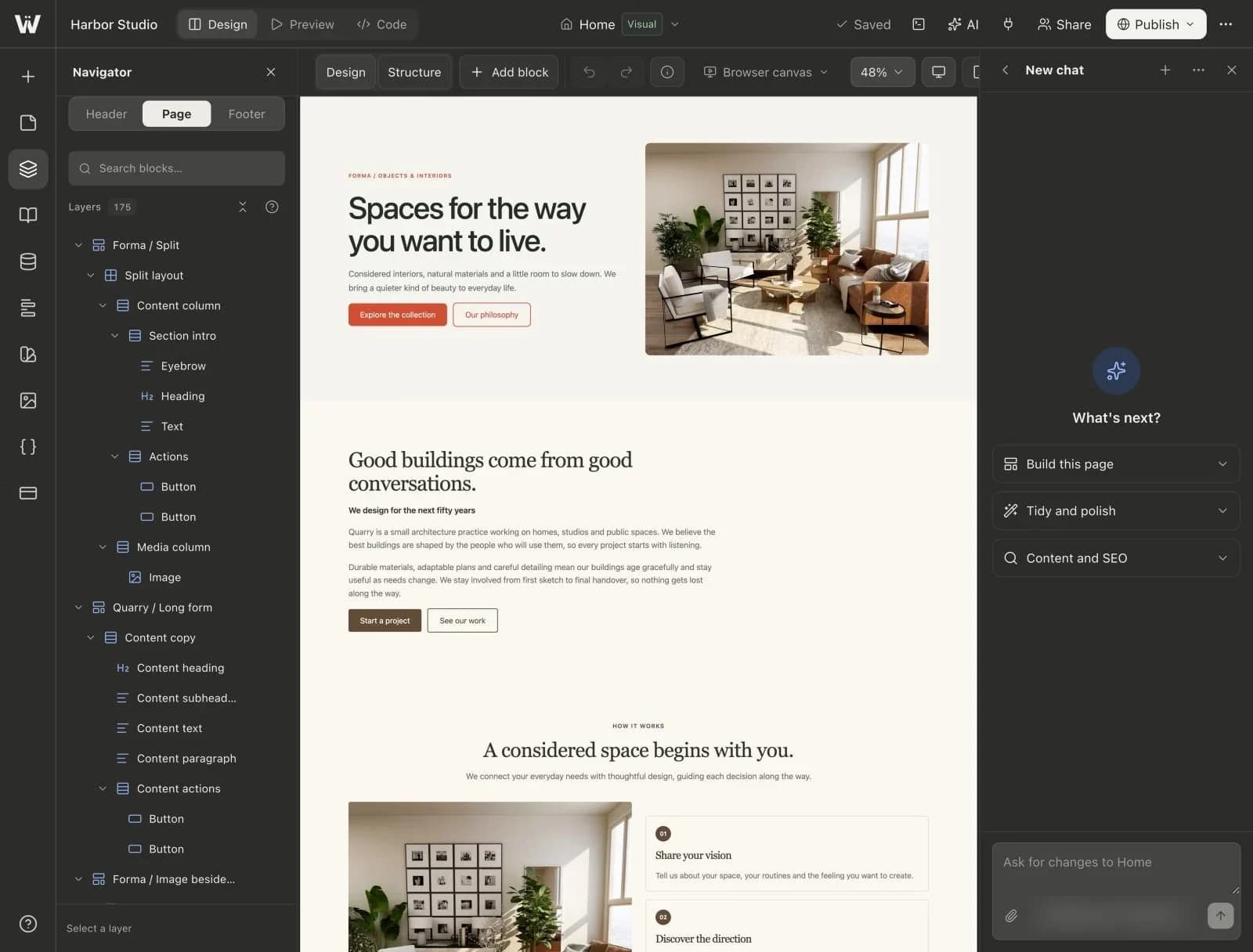
A real look at presets library in the builder. Scroll to explore.
Search sections or blocks and narrow the library by category.
See the finished section, with real content and styles, before you add it.
Installed sections are added to your project and ready to insert on any page.
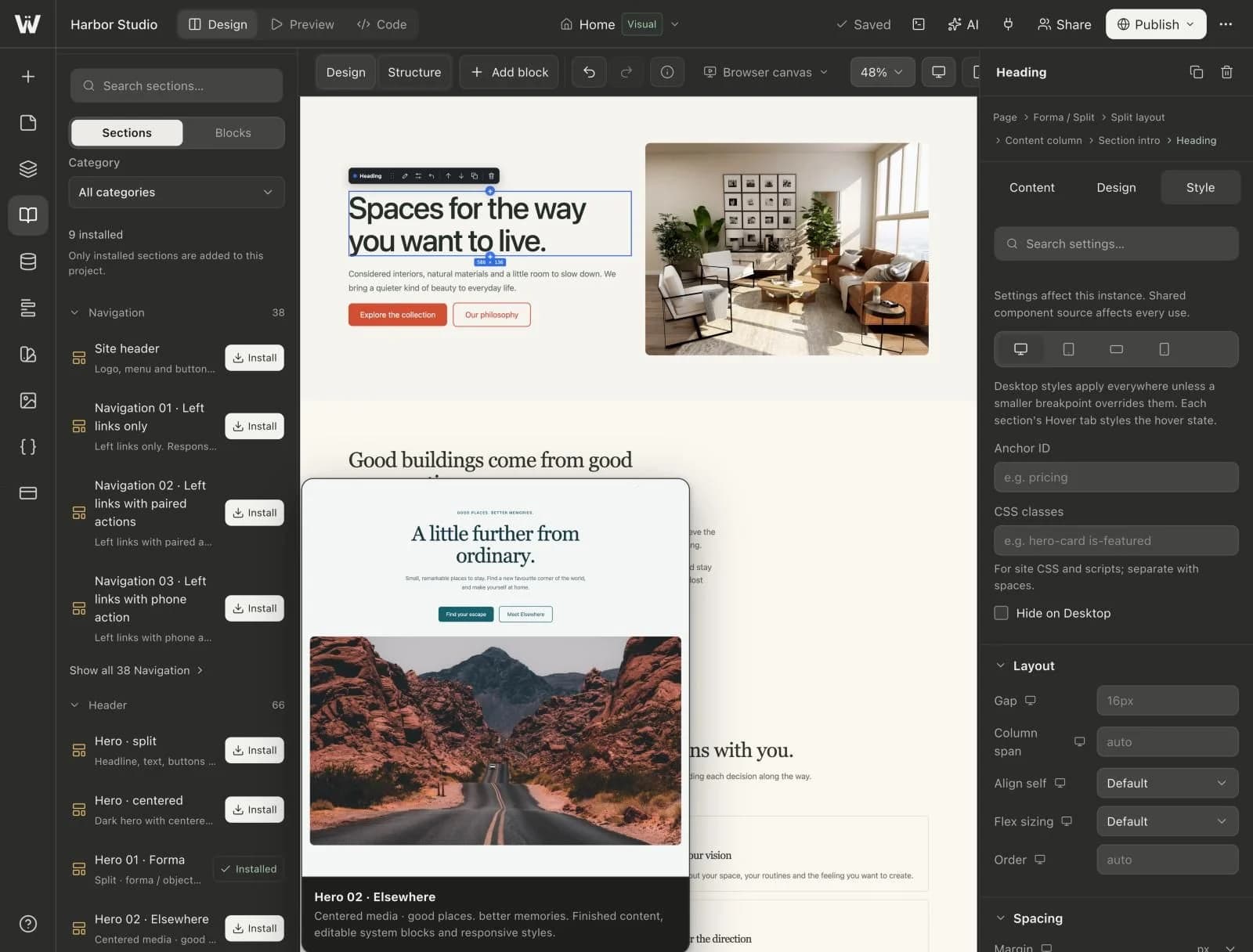
Real screenshots of the Webyaam builder with a demo site.
01 What you get
Finished heroes, features, pricing, FAQs, footers and more across 13 categories.
Headings, buttons, images, stacks and grids for building your own layouts.
A preset becomes your own section the moment you insert it. Nothing is locked.
Save a section you designed as a preset and reuse it across pages.
Library categories
02 How it works
Open the library and filter by category.
Drop a preset into your page where you need it.
Edit content and style like any other block.
03 Keep exploring
Your next website starts here
Start free in the builder. Your first site gets a 7-day trial with Grow features, no credit card needed.