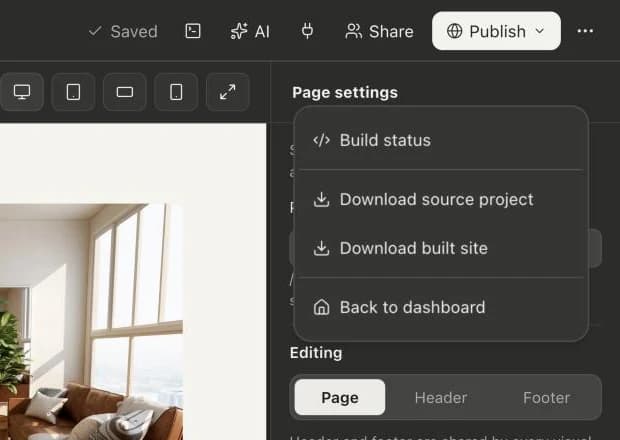
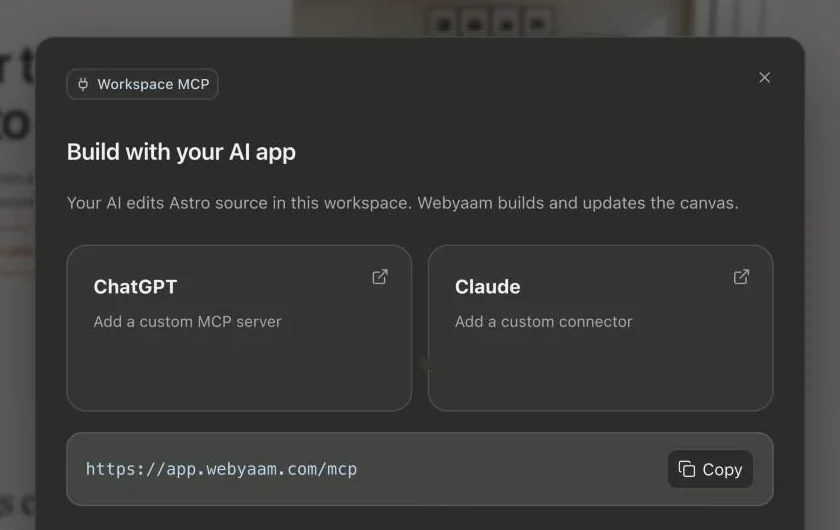
Monaco editor
The editor behind VS Code, with your project's files.
Edit project files in the Monaco editor, run commands in a terminal and use npm packages in an isolated sandbox, right next to the visual canvas.
A real look at code editor in the builder. Scroll to explore.
Pages, layouts, styles and config in a standard Astro structure.
CMS entries live in src/content as plain .md files.
Edit with syntax highlighting, tabs and breadcrumbs, then Save & build.
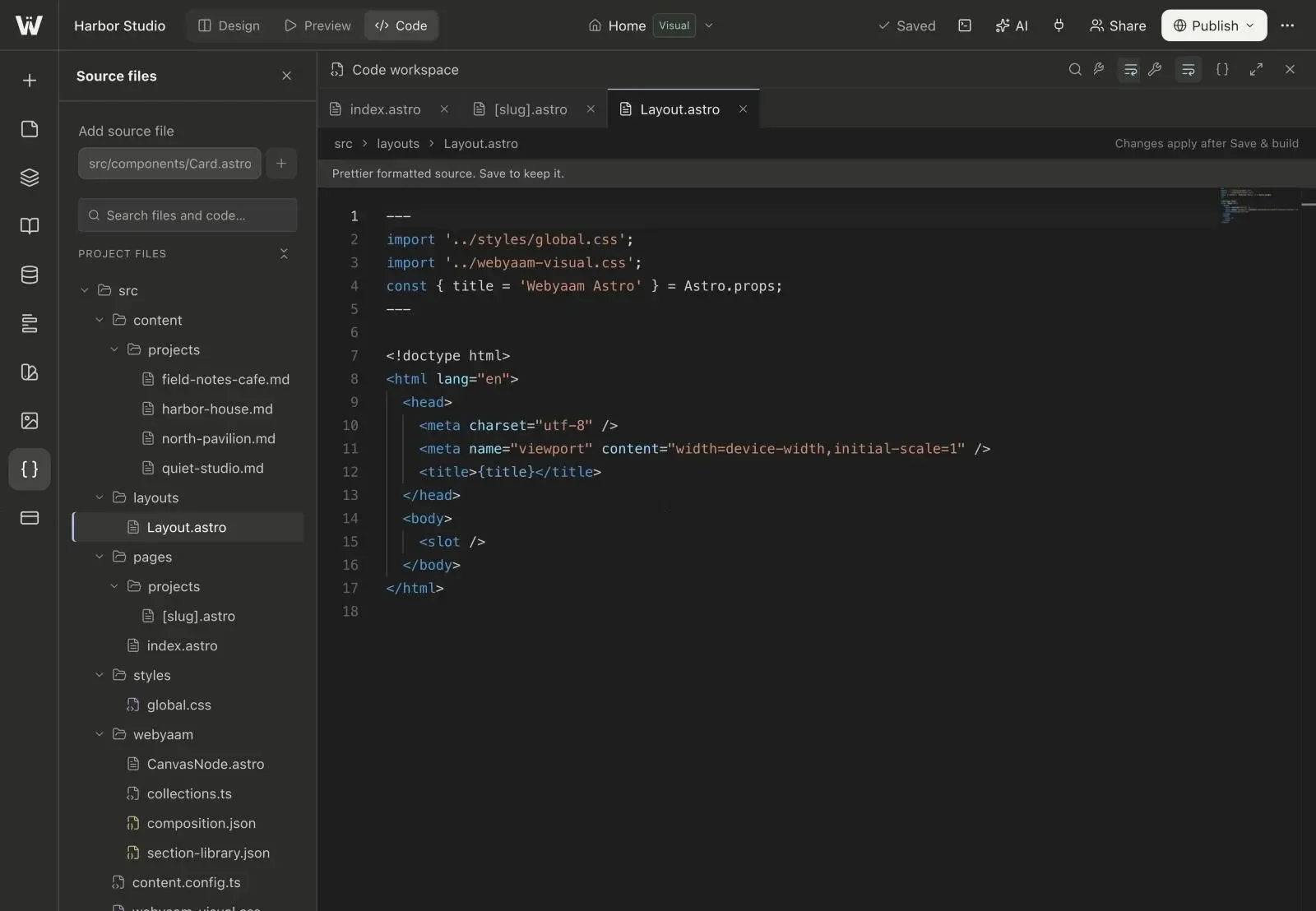
Real screenshots of the Webyaam builder with a demo site.
01 What you get
The editor behind VS Code, with your project's files.
Run npm scripts and commands in an isolated sandbox.
This is a real npm project. Install what you need.
Paid site or workspace plans, and during your first-site trial.
02 How it works
Open the code view from the builder.
Change files and run commands.
Keep designing on the canvas.
03 Keep exploring
Your next website starts here
Start free in the builder. Your first site gets a 7-day trial with Grow features, no credit card needed.