A CMS solves a specific problem: several pieces of content need the same structure, and someone must be able to maintain them without rebuilding the layout each time. An Astro site does not need a separate database-backed CMS for every blog or portfolio, but it does need a clear content model and an editing workflow.
Webyaam's CMS uses Astro content collections. Collection definitions describe the fields; entries are Markdown files stored with the project. This guide explains how to set one up, what the generated files do and where the limits of a file-based workflow matter.
Decide whether the content should be a collection
Use a collection for repeating records: articles, projects, team members or case studies. Use a normal page for a single, intentionally different layout such as a pricing page or a detailed About page.
A practical test is to imagine adding ten more records. If you would copy the same page and replace the title, image and description every time, a collection is probably useful. If each record has a completely different interaction and layout, define those differences before forcing everything into one schema.
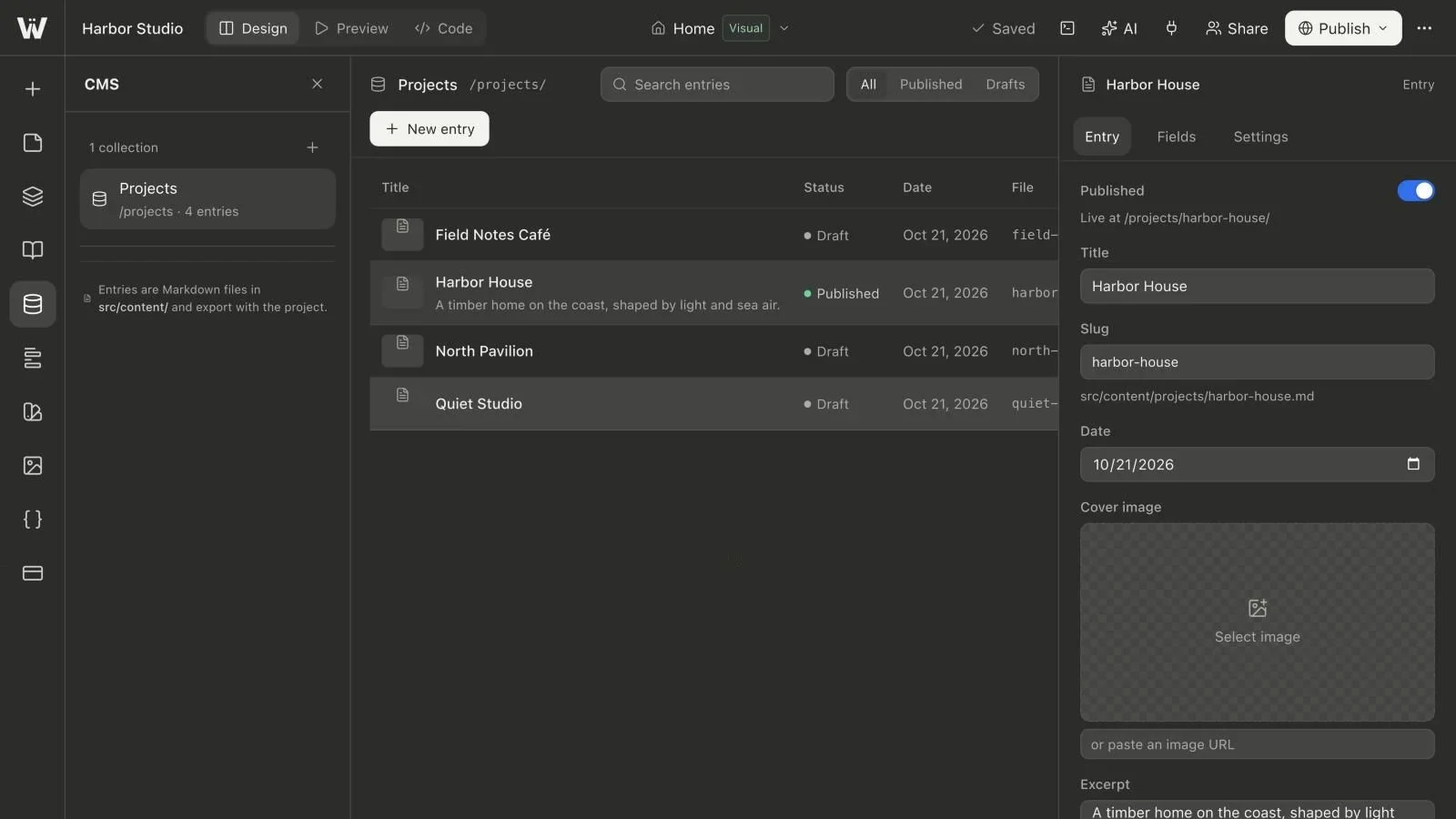
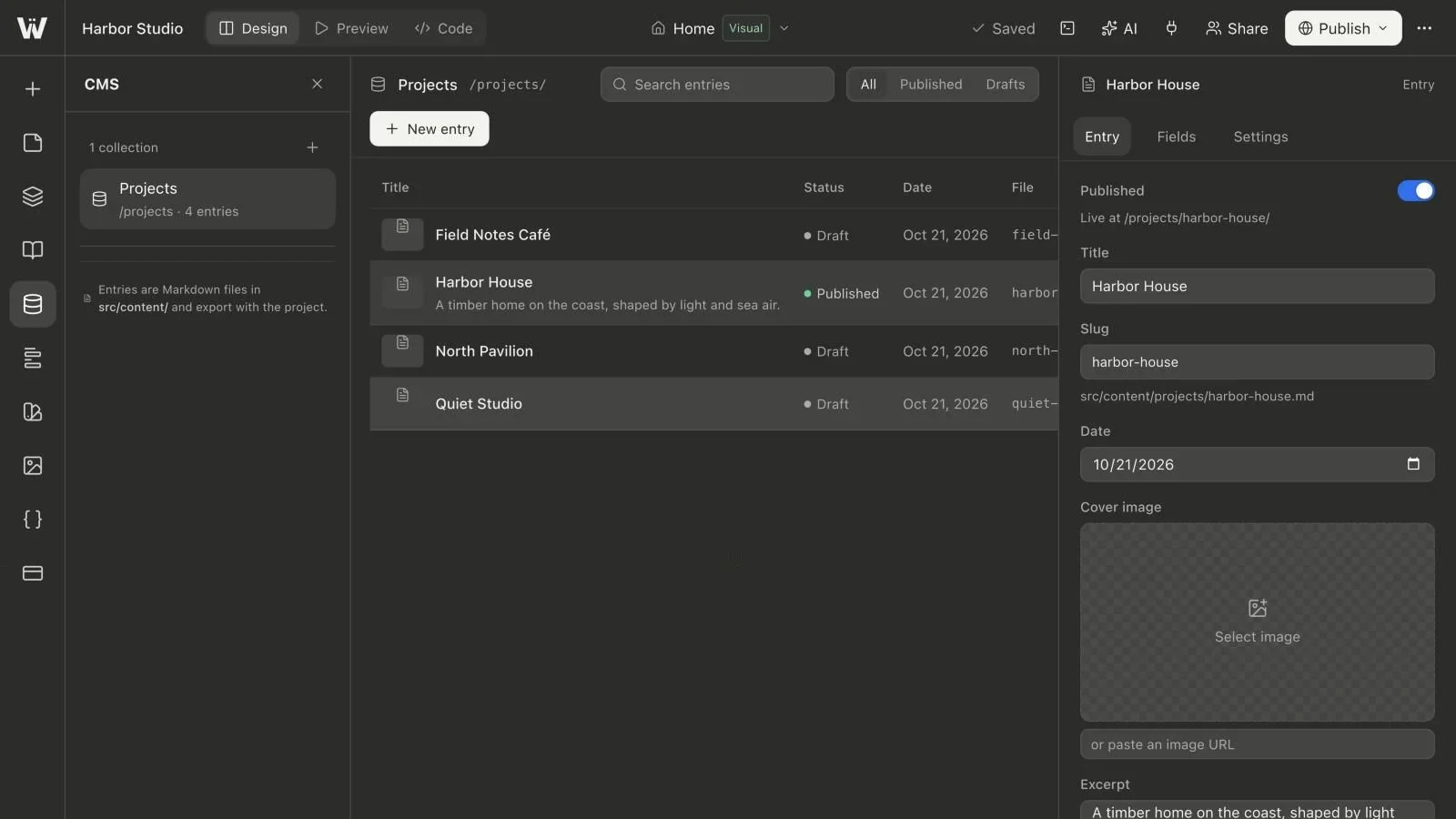
For our illustrative studio, a Projects collection needs a title, a short excerpt, a cover image and a longer body. A project year and a service category can be custom fields. There is no need to model thirty attributes simply because the CMS allows them.
Create the collection and choose its route
Open CMS collections in the builder and create a collection with a meaningful name. Review its route in collection settings. A Projects collection might produce detail pages under /projects/<slug>/; the collection's internal ID and public route are different concepts.
Keep URLs stable once pages are public. Renaming the label shown in the editor is not the same as changing every public URL. If you change a route on an established site, plan redirects at the hosting layer and update any navigation links that point to the old address.
The generated detail route follows the collection's settings. A separate collection list block can place the published entries on a visual page. Creating a collection does not mean that a navigation item or a dedicated listing page has automatically been added to your site.
Add fields according to how editors will use them
Title, slug, date, cover image, excerpt, body and draft status are built in. Custom fields support text, long text, number, switch, date, image, link, option and tags.
Choose an option field when editors should select from a controlled list such as Residential, Workplace or Hospitality. Choose tags when multiple labels are appropriate and a fixed taxonomy would be unnecessarily restrictive. Use a number for a value you need to compare or format as a number; use text for identifiers that happen to contain digits.
Make a field required only when a published record genuinely cannot work without it. A project may need a cover image for its card design, but a secondary testimonial may be optional. A required number can validly be zero, and a required switch can validly be false: required means a value is present, not that it has a particular business meaning.
Create the first entry as a draft
Add an entry, write a descriptive title and review its slug. Draft slugs can follow the title while you work, so settle on a stable URL before publication. Fill the excerpt with a useful summary rather than repeating the title.
Use the Markdown body for the long-form content. In a project entry, that might include the brief, constraints, approach and outcome. Do not invent client quotes or performance numbers to make a sample entry feel complete. Clearly label concept work as concept work.
Fill custom fields in the entry inspector and save the source. Reload the editor once during your initial setup to confirm that the entry, field values and body have persisted. That simple check catches misunderstandings about local input drafts versus saved project content.
Understand the files you are creating
An illustrative project entry might be stored at src/content/projects/harbor-house.md:
---
title: "Harbor House"
date: 2026-10-31
excerpt: "An illustrative coastal home project."
draft: true
projectYear: 2026
service: "Residential"
---

## The brief

Describe the project, its constraints and the design decisions.
The actual schema and route files are generated from your collection configuration. In Webyaam, the generated collection module is src/webyaam/collections.ts, and src/content.config.ts includes those collections. Prefer the CMS controls for schema changes instead of editing a generated file and expecting the builder to preserve conflicting versions.
Astro's content collections documentation explains the underlying content APIs. When reading it, use the version appropriate to the Astro dependencies in your exported project.
Connect content to the website
Add a collection list block to a visual page and select your collection. Check how titles, excerpts and images appear with both short and long content. Then review a detail page after building the project.
Custom fields are structured data, not a promise that every field automatically appears in every card layout. Check the generated detail layout or your own component when you need a field to appear in a particular position. For example, a year label in a project card may need a layout that explicitly uses the year field.
Move from draft to published content
Complete the required values before switching an entry to Published. Draft entries stay out of the generated published lists and detail pages. After changing the content status, save and rebuild or publish the site as appropriate; visitors do not receive a new static snapshot merely because a local control changed.
Our draft and publication guide separates these states in more detail. It is particularly useful when one person writes content and another approves the site release.
Choose the maintenance model deliberately
File-based content works well when the content can travel with the website and a build can turn it into pages. It is less suitable as an unplanned substitute for a large relational database, a personalized application or a transactional inventory service.
Exported Markdown remains useful source content, but exporting a project does not export Webyaam's running account system and editing dashboard. Decide who will edit content and trigger builds after a move to another host. Check the current plan limits before planning the size of a collection.
Continue with the Astro CMS learning hub or follow the portfolio collection walkthrough to turn this model into a complete example.