A landing page is responsive when its content and interactions remain useful as the available space changes. Shrinking a desktop screenshot until it fits a phone is not enough: the reading order, navigation, image crop and primary action may all need different treatment.
This guide uses Webyaam's visual editor to plan and review an Astro landing page. The example is an illustrative studio enquiry page, but the inspection process also applies to a service business or a small product launch.
Start with the content and primary action
Decide what the visitor should understand and do. A studio enquiry page might need a clear service description, evidence of relevant work, the process, practical questions and a contact action. If the page cannot explain those points in a simple outline, breakpoint adjustments will not fix the underlying problem.
Choose a realistic heading, a full-length description and an actual button label before tuning the layout. Placeholder copy hides the problems caused by long words, project names and translations.
Keep the page's primary action consistent. Repeating a useful contact action is reasonable; introducing a different action in every section makes it harder to decide what success means.
Set the shared visual rules
Define the font choices, text colors, spacing scale and content width before adjusting individual sections. Bind repeated values to design variables so a later brand update does not require editing every block separately.
Use a maximum width for long text. A wide desktop screen should create breathing room, not a single line of body copy that travels from one edge of the browser to the other. Keep readable text width separate from the width of a hero image or full-width background.
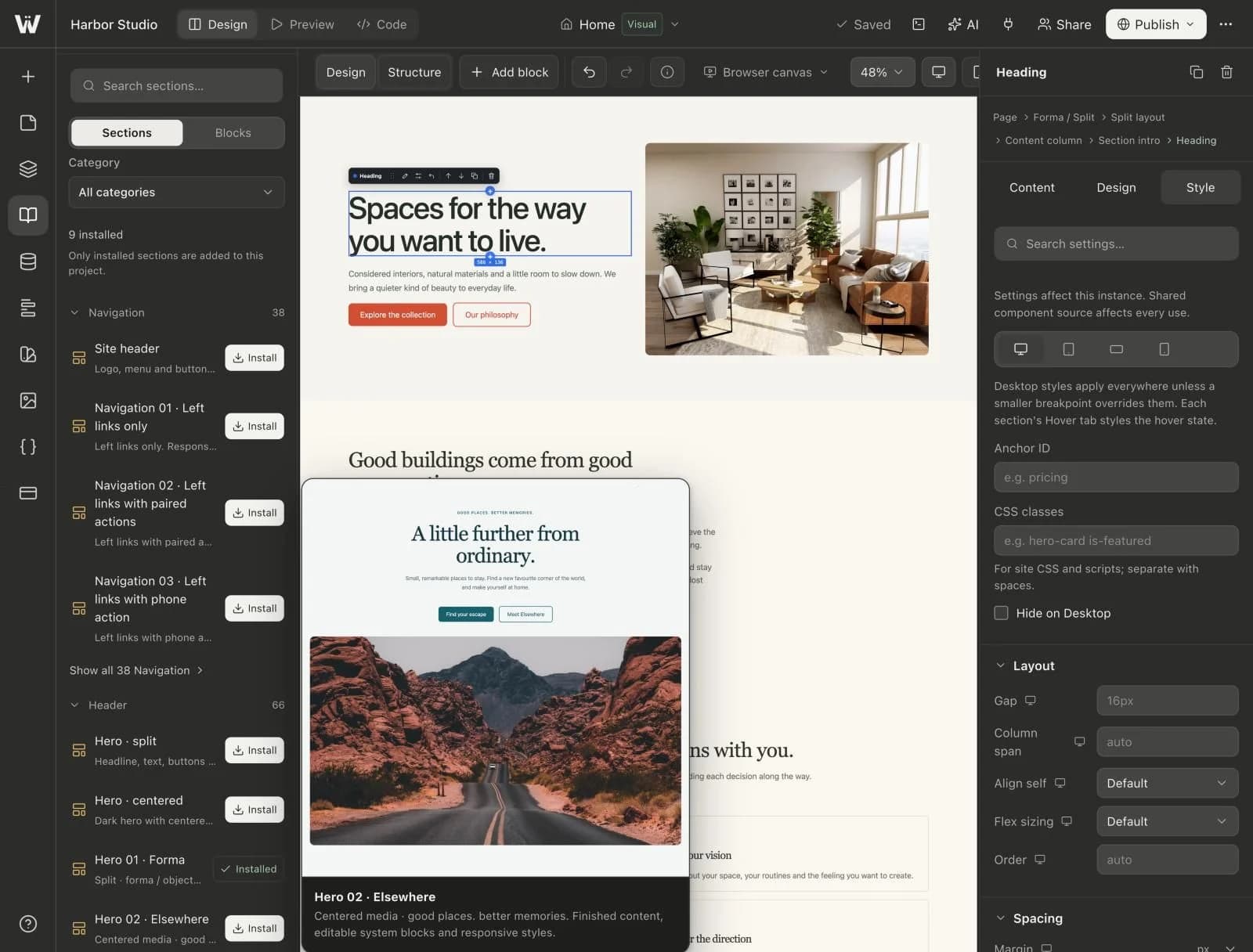
When using a preset, review its inherited spacing and typography after inserting real content. A section is a starting point; its demo image is not evidence that your final image crop will work.
Build a desktop structure that can rearrange
Use a clear section and container hierarchy. A two-column hero should have identifiable text and media areas rather than a collection of individually positioned elements that only align at one width.
Avoid unnecessary fixed heights for content-heavy sections. A larger browser font setting or a longer headline can make text overflow a box that looked correct in your first preview. Let the content determine the height unless there is a deliberate, tested reason not to.
Choose image behavior intentionally. A cover crop can maintain the layout's shape but may cut off a person's face or the important part of a project photograph. A contained image preserves the full image but may leave space around it. Inspect the actual asset rather than rely on the thumbnail.
Review tablet layouts as their own case
Tablet widths often reveal problems that are hidden on both a wide desktop and a narrow phone. A navigation row may still look like desktop navigation while no longer having room for its labels. Two columns may technically fit but leave each paragraph too narrow.
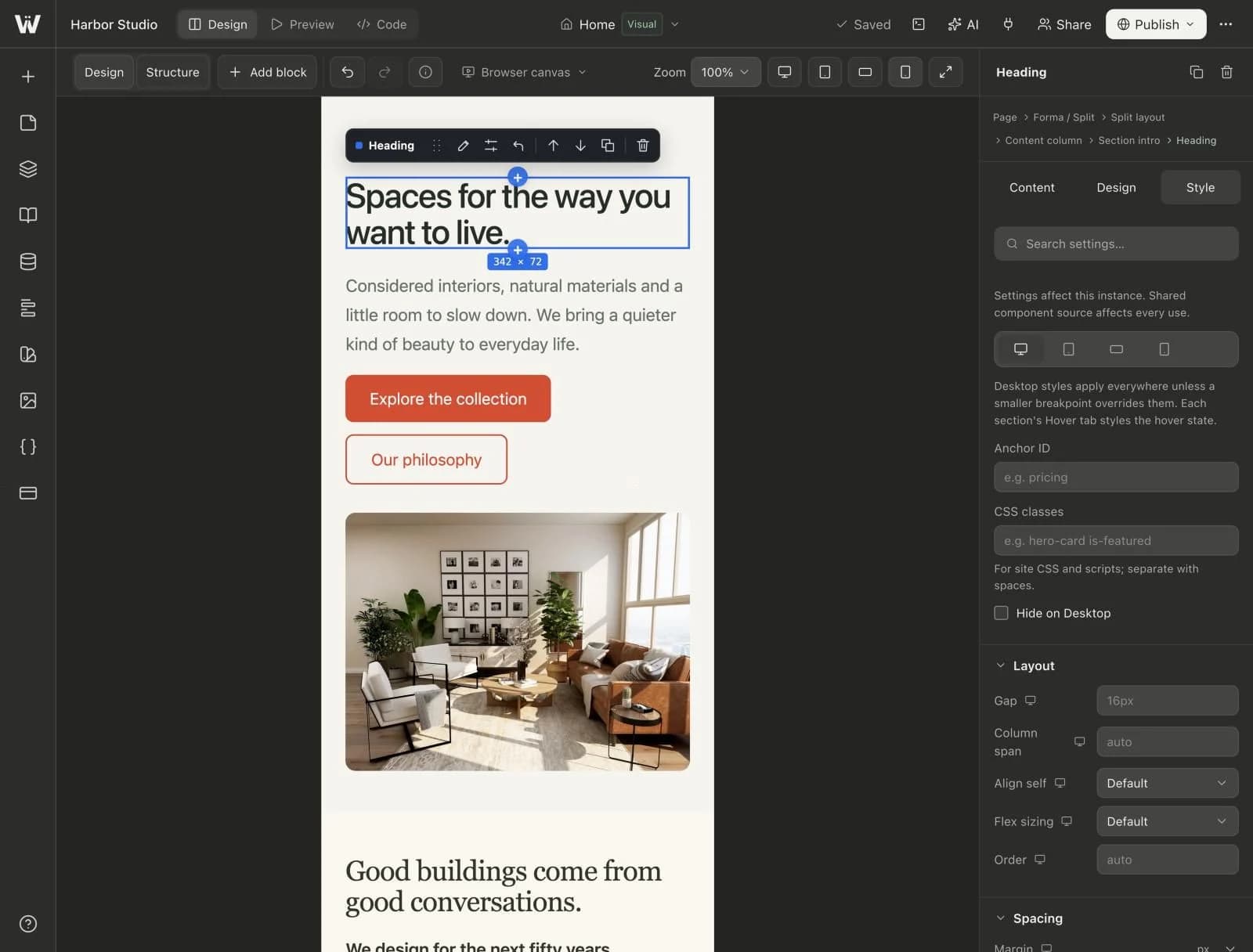
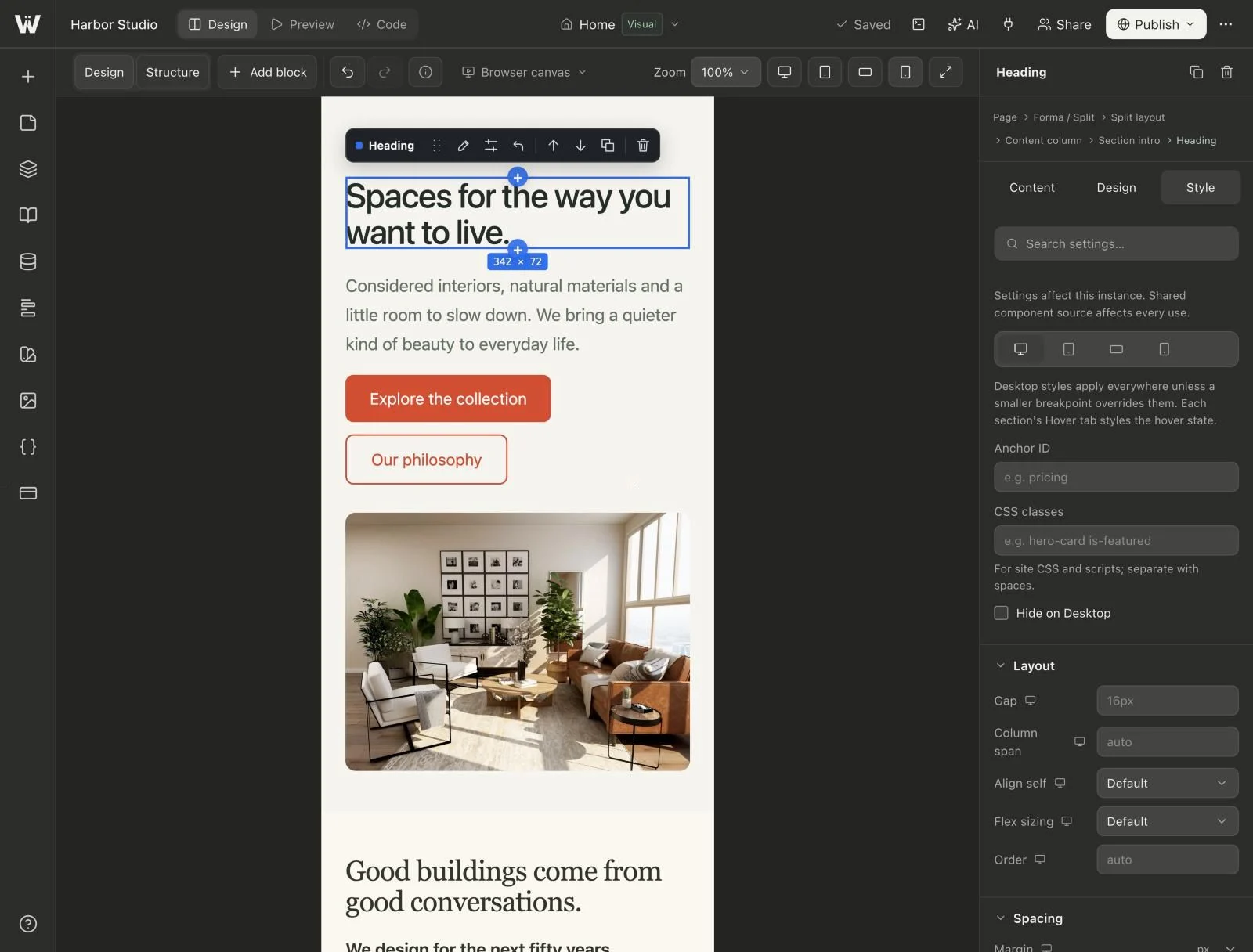
In Webyaam's responsive views, inspect the section spacing, column arrangement and per-block overrides. Change only the values that need to differ. Scattering unrelated overrides across many blocks makes later adjustments harder to understand.
Look at cards with unequal content lengths. The layout should have a deliberate policy for alignment and spacing; it should not rely on every title being exactly two words long.
Make the mobile reading order explicit
Ask what a visitor needs first. In many hero sections, that is the heading and explanation before the image. In a project comparison, the title should stay associated with the correct image and description when columns stack.
Check buttons, form controls and navigation with touch in mind. Labels should remain legible and controls should not be so close together that selecting one routinely activates its neighbor. Do not rely on a hover state to reveal essential information.
Review the header and footer, not only the main page sections. They are often shared across the site, so a small layout error there repeats on every page.
Test difficult content on purpose
Use a long project title, an image with a subject near its edge, a paragraph with a long URL and a form with an error message. These are useful test cases, not unusual exceptions to be ignored.
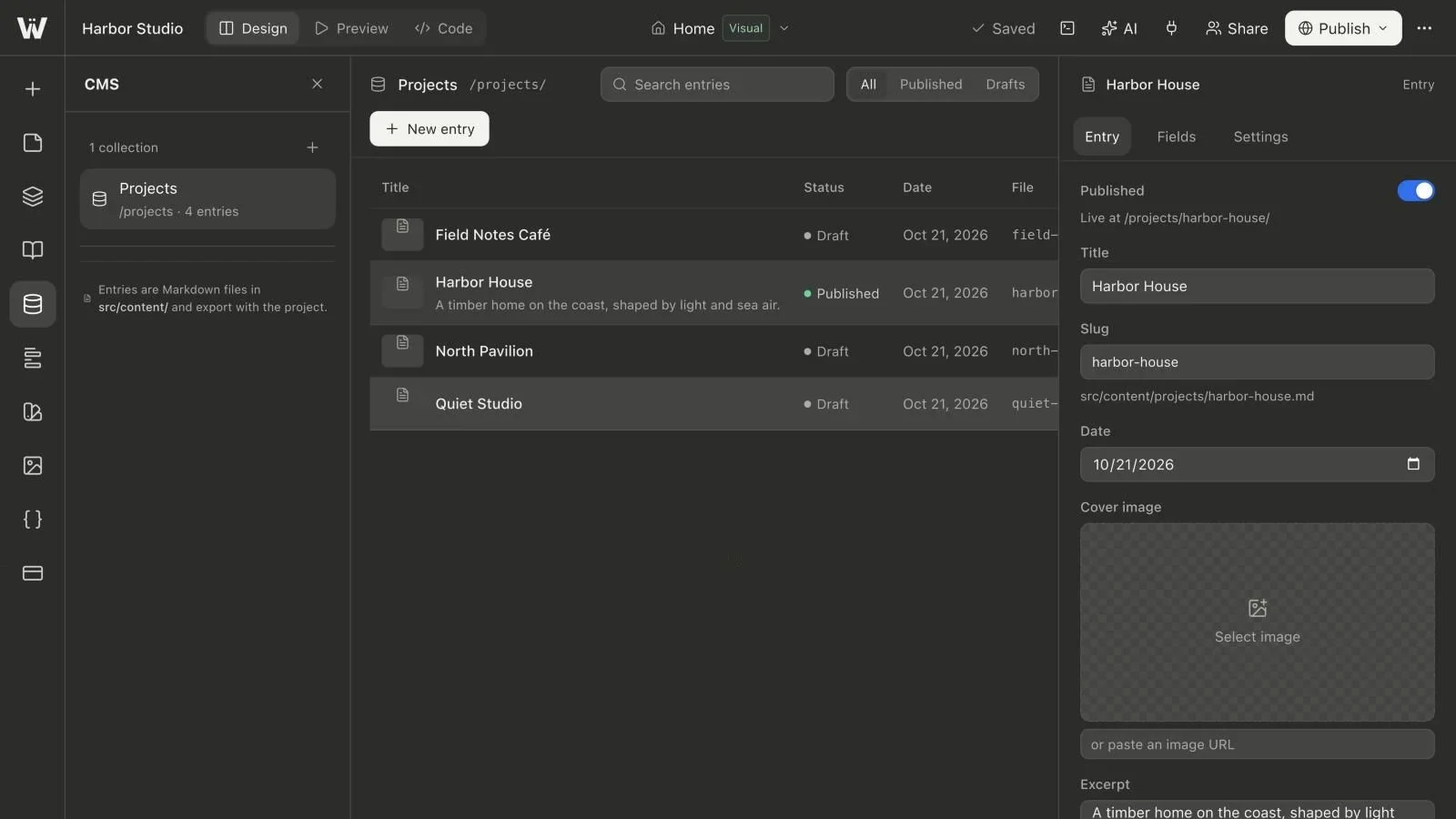
For collection-driven sections, test an entry with no optional excerpt and another with the longest reasonable excerpt. Required fields can enforce essential data, but the design should still handle the optional states that your schema allows.
After adding a new entry under an active search or status filter in the editor, confirm which record is selected before changing it. The public layout and the CMS management table serve different purposes; check both where relevant.
Review keyboard access and motion
Tab through the page in a real browser. Make sure the focus indicator is visible, the order is understandable and important controls work without a mouse. Use meaningful link and button labels, and keep heading levels organized around the content.
Animations should support understanding rather than delay access to a form or heading. Test the site's reduced-motion behavior. Avoid hiding essential content behind an interaction that some visitors cannot or do not want to trigger.
These checks are part of a useful review, not a claim of complete accessibility certification. More complex interactions may need a more thorough accessibility audit.
Verify the built website, not just the canvas
Save the source, build and inspect the result in a browser at a few widths. The canvas helps you design; the browser confirms the actual scrolling, navigation, forms and image loading behavior.
Use browser developer tools to investigate horizontal overflow rather than hide it globally. An oversized child, an unbroken string and an incorrect grid rule need different fixes. Hiding overflow can conceal the evidence while leaving content inaccessible.
Measure performance on the real page if it is part of your acceptance criteria. Record the device, network conditions and test method. Do not infer a performance score solely from the choice of framework.
Keep a repeatable launch check
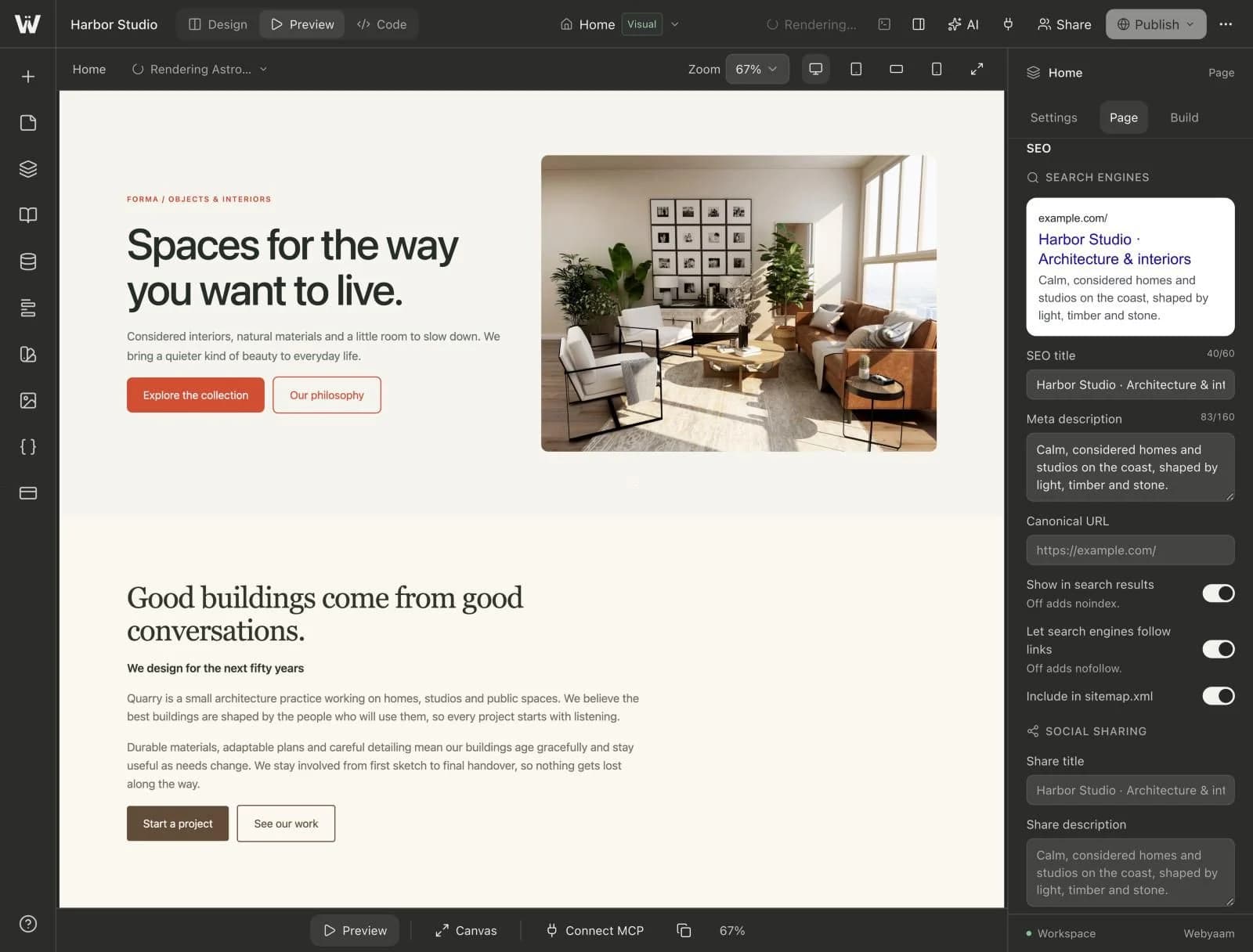
Before release, review desktop, tablet and mobile layouts; navigation; long content; keyboard focus; form success and error states; page metadata; and the final published URL. Then save the design decisions in a short note so later editors know which values are shared and which are intentional overrides.
Continue with the visual Astro building hub, the reusable components guide and the Astro SEO checklist to finish the page as a maintainable website.