Claude can help build a website when it has a precise brief, access to the right project and tools that understand the site. MCP provides the connection between the assistant and Webyaam's editing operations. It does not replace your decisions about structure, content, permissions or publication.
This walkthrough uses an illustrative studio site. The goal is a small Astro website with a consistent visual system and a reviewable CMS structure, not an unattended promise that a prompt will produce a finished business website.
Understand what the MCP connection does
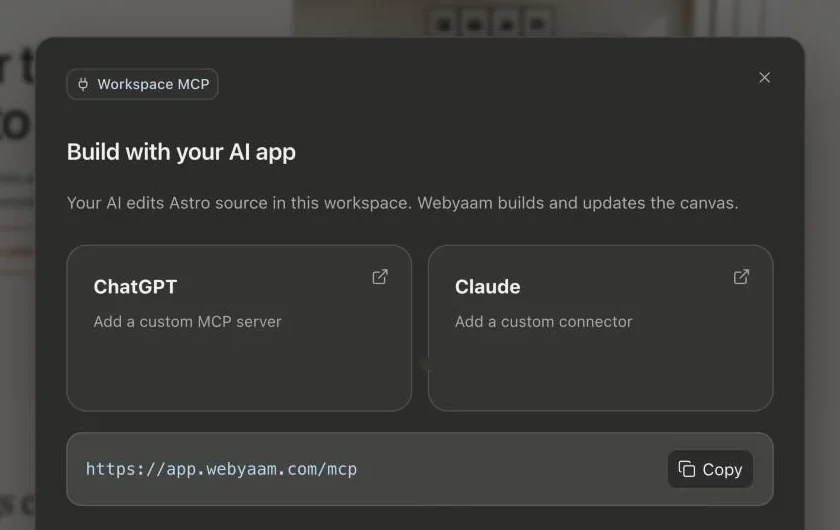
Webyaam's remote MCP endpoint is https://app.webyaam.com/mcp. A compatible AI client can connect to it and, after authorization, use tools for the selected workspace. That connection is different from the built-in site agent beside Webyaam's canvas.
Your external client's access, models and usage charges are governed by that client. Webyaam's built-in agent uses the platform's AI credit system. Do not assume that buying credits for one automatically funds the other.
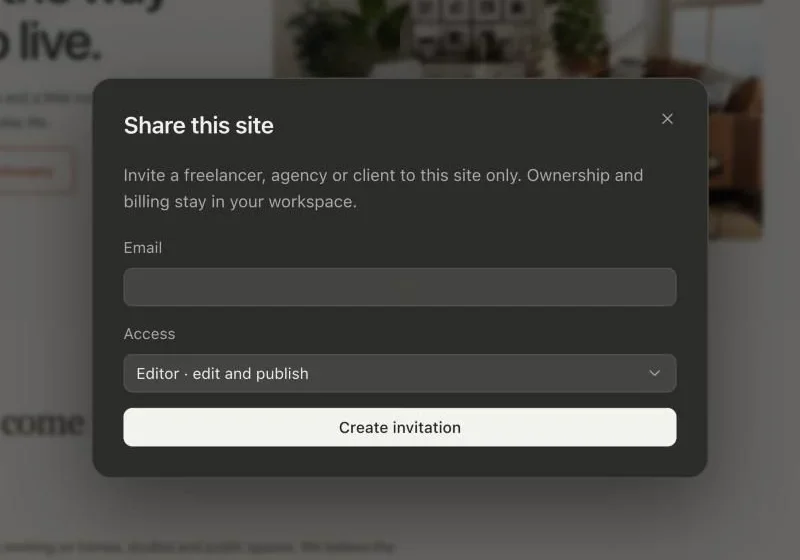
The connection also follows your role. A viewer connection should not become an editor simply because the prompt asks for a change. Authorize the workspace you intend to use and review the client's requested access before continuing.
Connect a compatible Claude client
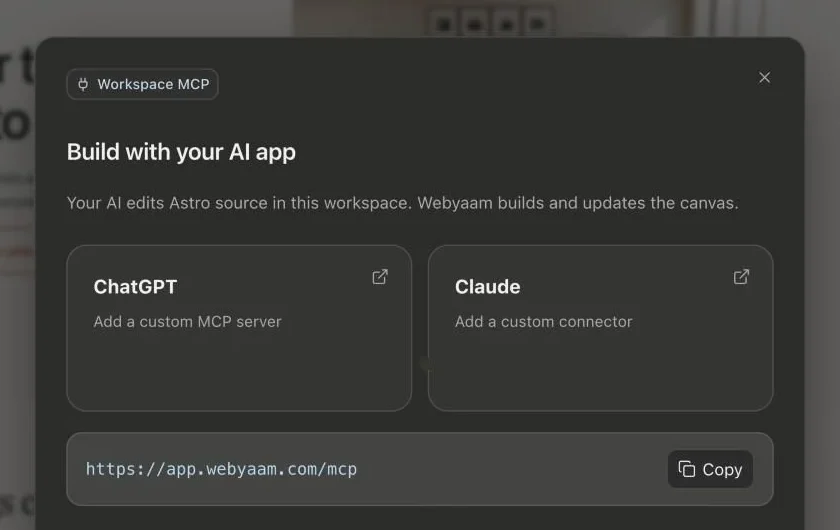
In Webyaam, use Connect MCP to obtain the server address and connection instructions. In a Claude client that supports remote MCP connectors, add the server, sign in to Webyaam and choose the workspace. Client menus and availability can depend on the Claude product, plan and administrator settings.
For Claude Code, the current remote HTTP setup uses the following command:
claude mcp add --transport http webyaam https://app.webyaam.com/mcp
Complete the authentication flow exposed by your installed client. Check the Claude Code MCP documentation for its current authentication and management commands rather than copying an old menu path from a screenshot.
Start with a read-only request: ask the assistant to list the available sites in the authorized workspace and identify the project you name. If it cannot see the intended project, fix the workspace or membership selection before asking it to create something new.
Give the assistant a bounded first task
A useful brief describes audience, purpose, pages, content and constraints. For example:
Work on the studio site I identify. First inspect its pages, installed
sections, variables and CMS collections. Do not publish or delete content.

Propose a home-page outline for an architecture studio whose main action
is a project enquiry. Use existing blocks and a restrained visual system.
Label example projects as illustrative. Ask before changing shared
components or moving existing public URLs.
This request gives the assistant a discovery phase and a clear boundary. It also avoids the common failure of creating a second site because the existing site was not inspected.
Review the outline before moving to implementation. You should be able to explain why each section exists and what information the visitor receives from it.
Build the structure before the decoration
Ask for the page skeleton, shared navigation and a small set of variables first. Then inspect the result on the canvas. Choose sections because they fit the content, not because the assistant found an attractive but unrelated preset.
Webyaam has different reuse mechanisms: shared header and footer areas, linked visual components, section presets and custom Astro components. Tell the assistant which scope you intend. “Change this card” can mean one instance, every linked instance or the saved starting preset; those are different operations.
Use the reuse guide when defining this part of the brief. For ordinary content edits, ask the assistant to preserve the design system and change only the relevant instance values.
Model the CMS explicitly
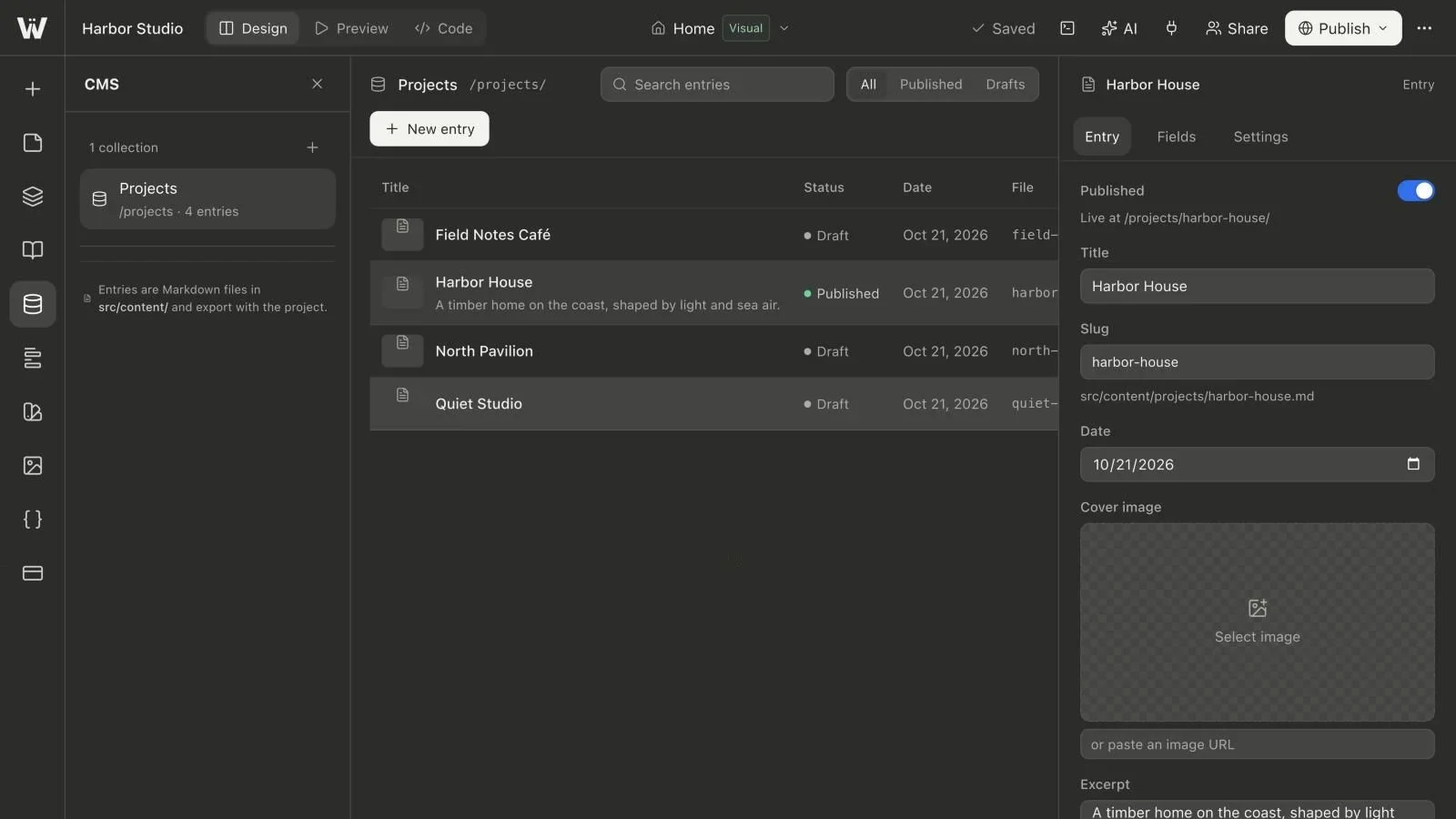
Before generating several projects or articles, ask for a proposed collection schema. Review the field labels, types, required values and route. Then create a small number of clearly illustrative draft entries.
For a portfolio, ask the assistant to use the CMS tools rather than manually creating unrelated page files for every project. The portfolio walkthrough describes the difference between entry data, collection lists and detail pages.
Require an evidence check after a batch: list the entries again, inspect one entry and report which items are drafts. A successful tool call is useful evidence, but it is not the same as seeing the intended result in the browser.
Handle concurrent edits and failed requests carefully
Website editing is shared state. You might change a heading on the canvas while an assistant is preparing a patch against an older revision. If the server rejects a stale edit, the assistant should reload the current project and reconsider the change rather than keep submitting the same outdated revision.
Keep tasks small enough to review. “Update the service descriptions, preserving layout” is easier to inspect than a single instruction that changes typography, CMS routes, navigation and hosting together.
When a request fails, ask the assistant to report the actual error and the operation that failed. Authentication, source validation, a missing required field and a busy development session require different fixes. Repeating the prompt does not distinguish them.
Review the output at desktop and mobile widths
Check long titles, image crops, navigation, forms, focus states and the reading order. Ask for a report of the pages changed, the content added and the checks completed. For published pages, inspect the actual page rather than only the editor screenshot.
Use a second prompt for final review:
Review the changed pages without publishing. Check headings, internal
links, missing images, mobile overflow, required CMS values and page
metadata. Separate confirmed problems from suggestions. Explain any
check you could not complete.
An assistant should not invent measurements, customer stories or successful checks. You still need to verify business facts and asset licenses.
Publish as a separate, intentional step
After review, decide whether to save source, build a preview or publish. Treat publication and destructive changes as explicit decisions in your workflow, even if the assistant can access the relevant tools.
You can revoke an external connection when the work is finished. For a client handoff, document who may reconnect an assistant and which workspace it should access. Continue with the AI and MCP learning hub, the connection documentation and the website handoff checklist.